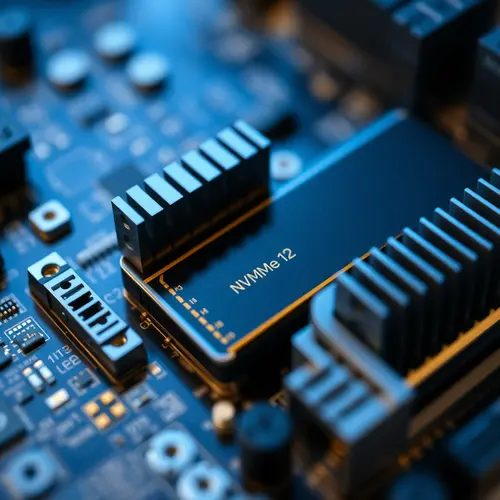
intel rapid storage
Understanding Intel Rapid Storage Technology Mechanics
At its core, this technology acts as a communication layer between the operating system and the physical storage hardware. It manages how data moves across the bus, ensuring that the CPU spends less time waiting for the disk to respond. By utilizing intel rapid storage, users can implement RAID (Redundant Array of Independent Disks). This allows multiple physical drives to appear as one logical volume, providing either extreme speed or a safety net against hardware failure. Many modern laptops come with these drivers pre-installed in the BIOS. However, a clean install of an operating system often requires the manual loading of these drivers to see the NVMe SSD during the partition phase.Core Benefits of intel rapid storage Implementation
Implementing these drivers provides a distinct performance edge. It reduces latency by optimizing the way the system handles I/O requests. This results in faster boot times and snappier application launches. For professionals handling massive datasets, the striping capability is a game-changer. It splits data across two or more disks, allowing the system to read from both simultaneously.- Data Redundancy: Protects files via mirroring in RAID 1.
- Enhanced Throughput: Increases sequential read/write speeds in RAID 0.
- Power Management: Extends battery life by managing link power states.
- Boot Efficiency: Speeds up the hand-off between BIOS and the OS.
Technical Comparison: RAID Levels and Performance
Choosing the right configuration depends on whether you value speed or safety. The following table outlines the primary modes supported by the technology.| RAID Level | Primary Goal | Risk Level | Performance Gain |
|---|---|---|---|
| RAID 0 (Striping) | Maximum Speed | High (One drive failure kills all data) | Extreme |
| RAID 1 (Mirroring) | Data Safety | Low (Redundant copy exists) | Moderate |
| RAID 5 (Parity) | Balance | Medium (Can survive one drive failure) | High |
Expert Opinion: The “Missing Drive” Myth
A common frustration for technicians is the “No drives were found” error during Windows installation. Many believe the SSD is dead or the cable is loose. In reality, the installer simply lacks the intel rapid storage driver needed to communicate with the VMD (Volume Management Device) controller. The solution isn’t to disable the controller in the BIOS, which can limit performance. Instead, load the F6 driver from a USB stick during the installation process. This ensures the hardware runs at peak efficiency from the first boot.Step-by-Step Installation Process
Getting the system configured correctly requires a specific sequence to avoid data loss. Follow these steps for a clean deployment.- Download the official driver package from the manufacturer’s support page.
- Extract the .zip or .exe files to a FAT32-formatted USB drive.
- Boot into the installation media and select “Load Driver” at the disk selection screen.
- Browse to the folder on the USB and select the matching controller driver.
- Confirm that the drive now appears in the list and proceed with partitioning.
Troubleshooting Common Configuration Issues
If you experience “Blue Screen of Death” (BSOD) errors after an update, it is often due to a driver mismatch. Ensure the version matches the chipset generation of your motherboard. According to technical documentation from Intel’s hardware whitepapers, mismatched drivers can cause interrupt conflicts. This leads to system instability or intermittent disk timeouts. Another common issue is the “Disabled” status in the BIOS. If the option is greyed out, check if your SATA mode is set to AHCI. To use intel rapid storage features, the mode must be shifted to “RAID” or “Intel RST Premium.” Always back up your data before changing these settings. Switching from AHCI to RAID after an OS installation will likely result in a boot failure unless you force a registry change in Safe Mode. Optimizing your system with intel rapid storage ensures that your hardware isn’t being throttled by inefficient communication protocols. Whether you are a gamer or a data scientist, the stability provided by these drivers is essential for a professional workstation.
Related: cutting edge systems principles. Note on intel rapid storage technology basics.
Source: Intel RST official support.
How to Choose the Right RAID Level
Use RAID 1 for safety on two drives. Use RAID 0 only for scratch speed with backups elsewhere. Most home setups need no RAID at all.
| Level | Best for | Speed | Safety |
|---|---|---|---|
| AHCI/no RAID | Single drive | Good | Standard |
| RAID 1 | Mirrored safety | Good | High |
| RAID 0 | Temp speed | Fastest | Low |
Who Should Install the Driver
RAID users and missing-drive cases need it. Standard single-drive users can skip it. Laptop owners should check vendor pages first.
Verdict: confirm your goal first, back up fully, then install once and verify volume health.
Note: intel rapid storage technology setup starts in BIOS. Enable intel rapid storage technology mode before installing the OS. With intel rapid storage technology active, create the volume, install the driver, and verify health. Many missing-drive cases resolve once intel rapid storage technology driver loads. Keep intel rapid storage technology firmware updated and back up before changes. For single-drive use, intel rapid storage technology is optional.
Setup tip: intel rapid storage technology volume setup takes minutes once the driver loads. Confirm intel rapid storage technology status in console after reboot.
Further reading on this site:
- how to make money with tech affiliate marketing
- how to promote digital products as an affiliate
- data driven decision making how to leverage data for business success
- data analytics in healthcare improving patient outcomes
- data analytics for beginners a step by step tutorial
- data literacy for everyone empowering individuals with data skills
What does this driver do?
It links the OS to SATA and NVMe drives, enabling RAID modes, faster caching and power control.
Do you need it for one drive?
Often no. Single-drive setups usually run fine on default drivers unless RAID is planned.
Why is the drive missing at install?
The installer lacks the driver. Load it from USB during setup, then retry detection.
About the Author